

Having an Export Text Library allows you to have different sets of vehicle descriptions/text available to add for different types of vehicles. For example you may want different standard text for imported vehicles than you do for vehicles that you have traded in to stock.
Adding export text to a vehicle
Step 1: To find and use your Export Text Library, just open up a vehicle and go to the Export tab
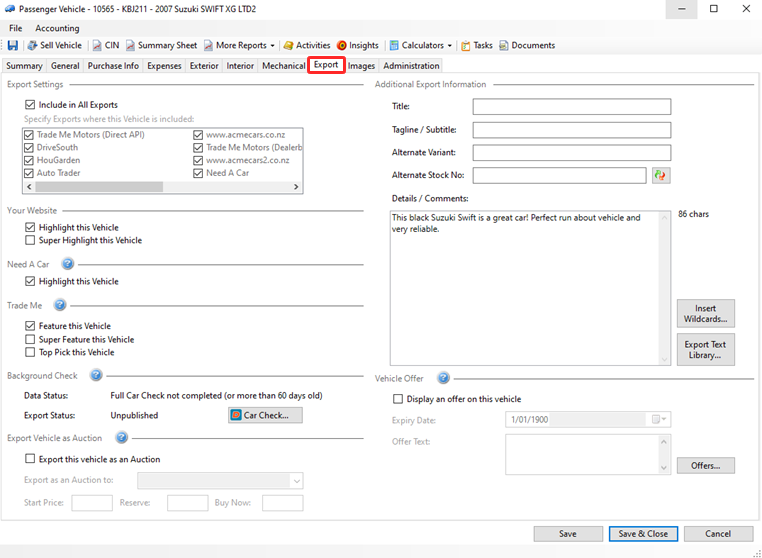
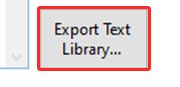
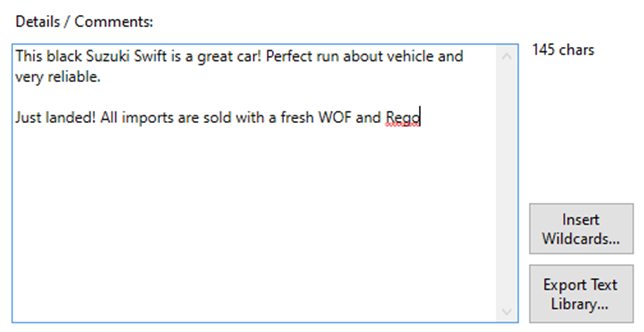
Step 2: Click on Export Text Library next to the Details/Comments text box
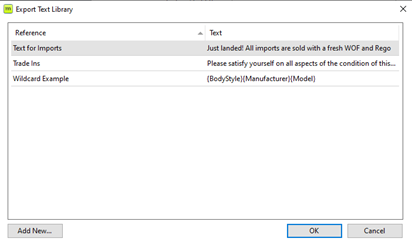
Step 3: This will display all text within your library, and will also give you an option to Add New
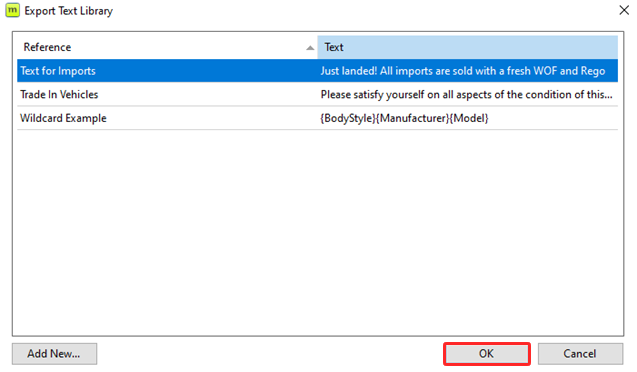
Step 4: To apply text from the export text library to your vehicle description, click on the text so it highlights in blue > select OK
The text will now appear in the Details / Comments box
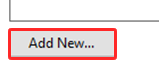
Or, if you need to add a new text library option click Add New
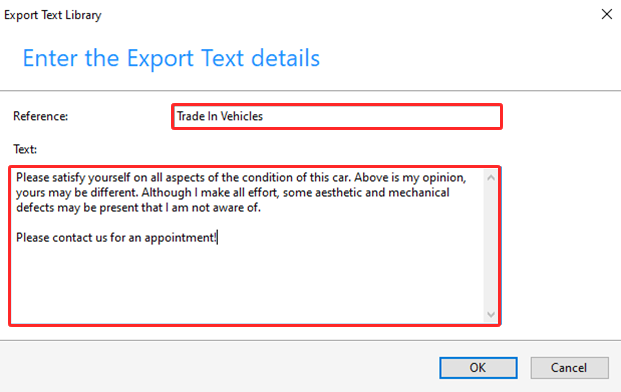
Add a Reference and type out the description in the text field.
Click OK. Your text will now appear in the Details / Comments box and will also be added to your library for future use
Editing and removing text from the library
Follow the below steps if you need to edit or remove text from your library:
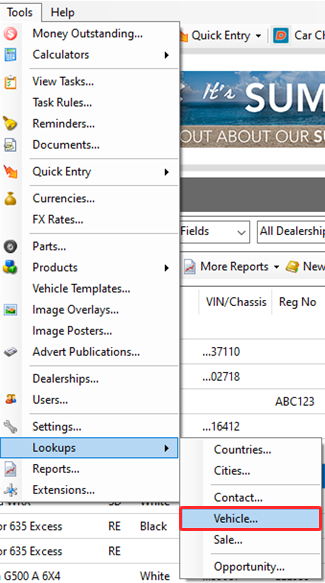
Step 1: Tools > Lookups > Vehicle
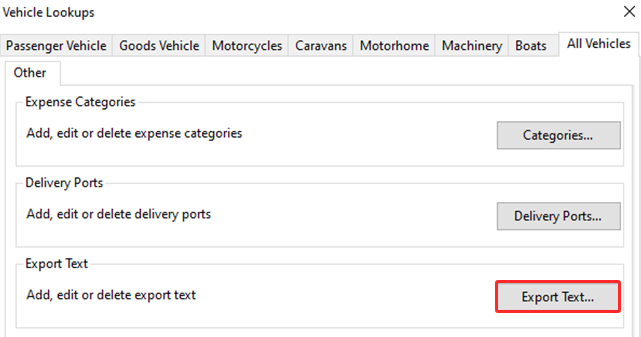
Step 2: All Vehicles > Export Text
Step 3: From here, you can Add, Edit and Remove text from your library
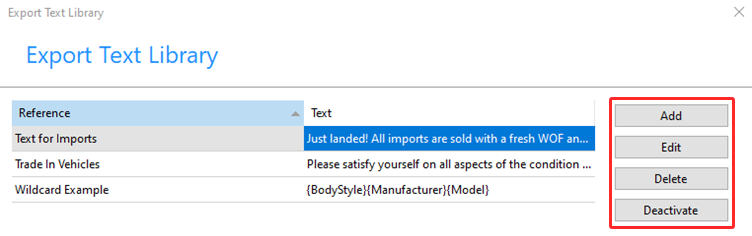
Note: If you are removing text from the library that is potentially active on an existing vehicle please use Deactivate instead of Delete. It will still be removed from the library, but it will avoid breaking any links on existing vehicles.
If you edit any text in the library, this will not apply to any existing vehicles using this text, it will only apply when used from then onwards. If you need to update any text in bulk across existing vehicles please email the support team: support@motorcentral.co.nz with the old text and the new replacement text and they will apply this for you.
Leave a comment
Please sign in to leave a comment.