Upgrading from a previous version?
If you are upgrading from a previous version of Motorcentral, see Updating Motorcentral.
Want to install Motorcentral Demo version?
You will need to register online before being able to download and install the demonstration version of Motorcentral. Please read Downloading the Demo Version for more information.
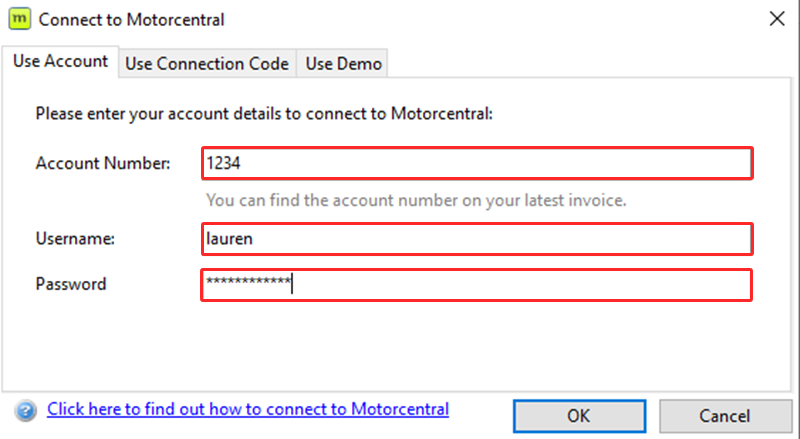
Before installing Motorcentral on to your computer, please make sure you have your Motorcentral Username, Password and Account Number/Customer Number. Your customer number can be found on any of your Motorcentral Invoices, or you can contact the Support Team to retrieve this.
Step 1: Go to www.motorcentral.co.nz/downloadmc
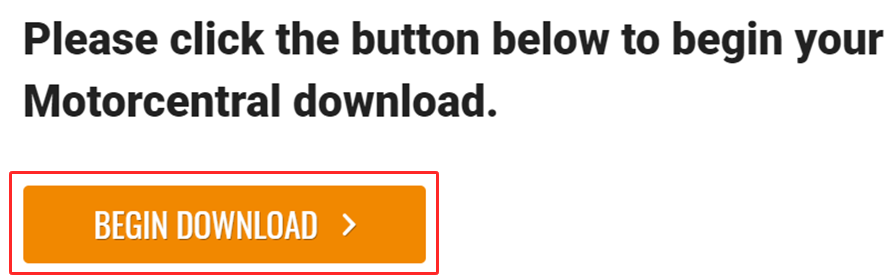
Step 2: Click Begin Download
Step 3: The file will appear at the bottom of your computer:
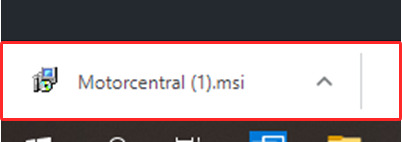
Or, it will go to a blue arrow icon in the top right hand corner

Step 4: Click on the Motorcentral.msi file to open it.
Or, click on the blue arrow icon and then open the Motorcentral.msi file.
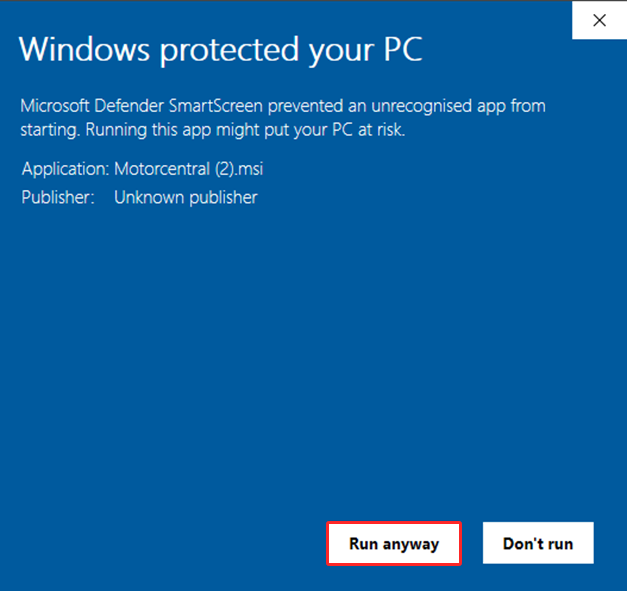
Step 5: Click the More info link
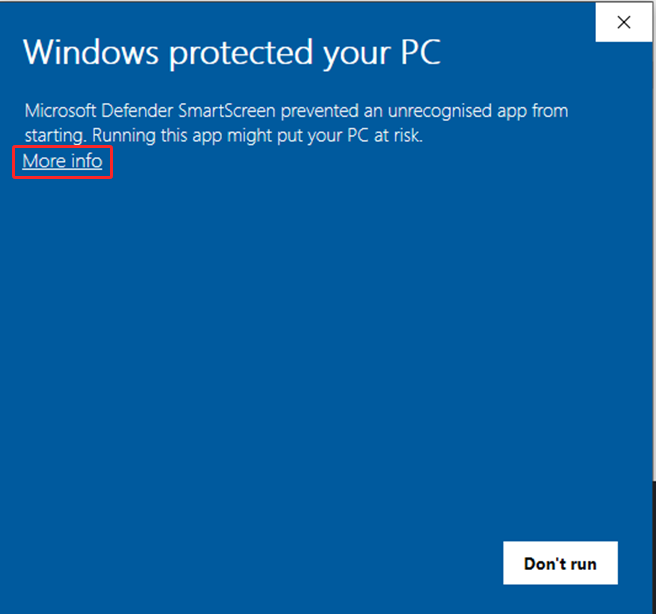
Then Run anyway
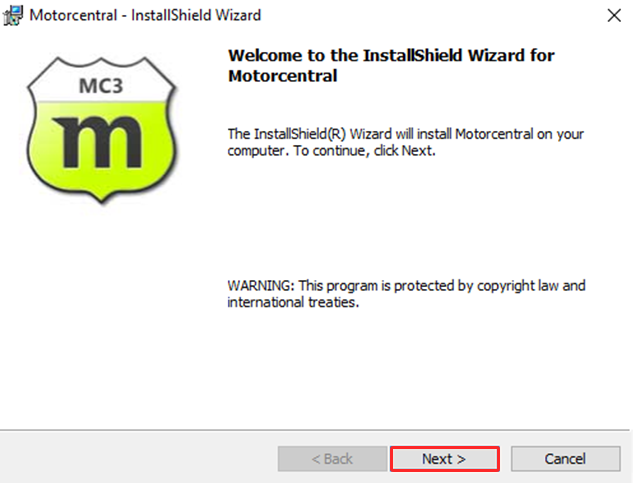
Step 6: Click the Next button and follow through with the installation Wizard
Step 7: Once the installation is complete you will need to enter your Account number, Username and Password to connect > OK