


Before completing these steps, please ensure you have obtained your email address, password, incoming mail server name (IMAP), and outgoing mail server name (SMTP) from our Support Team.
Step 1: Tap on the Settings App

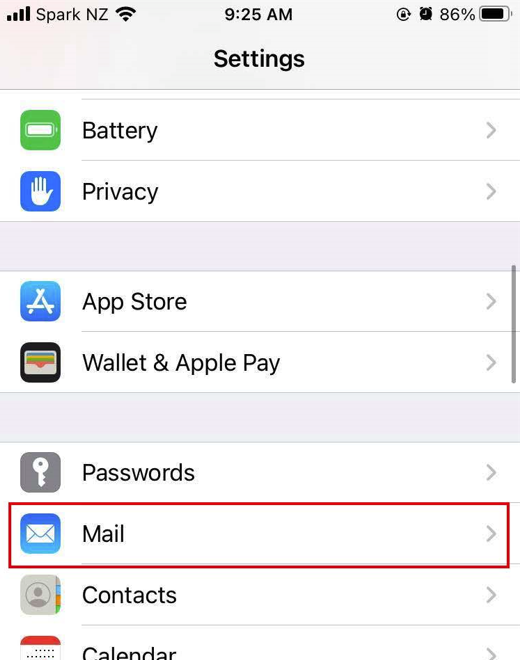
Step 2: Scroll down and tap Mail
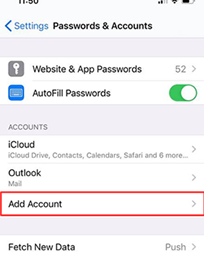
Step 3: Tap Accounts then Add Account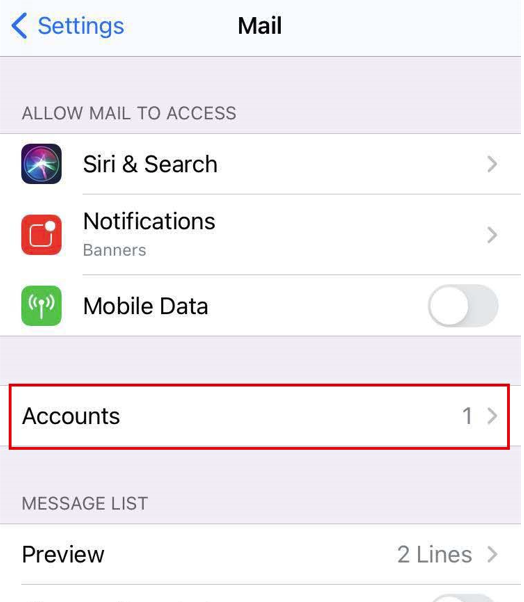
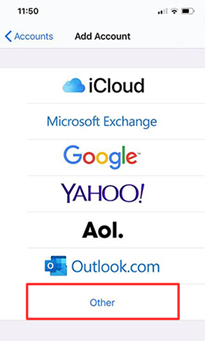
Step 4: Select Other
Step 5: Tap Add Mail Account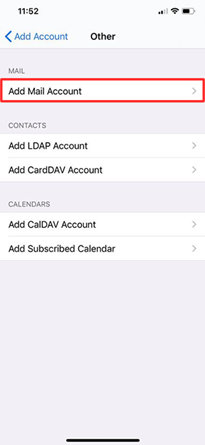
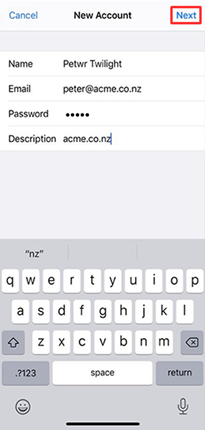
Step 6: Enter account details
- Name: Your name or account name (this will be used for outgoing emails)
- Email address
- Password
- Description field is optional
Tap Next
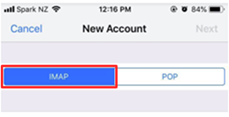
Step 7: Select IMAP (this is usually already selected by default)
Step 8: Enter your account details.
Incoming Mail Server
- Host Name: Incoming (IMAP) mail server
- User Name: Full email address
- Password
Outgoing Mail Server
- Host Name: Outgoing (SMTP) mail server
- User Name: Full email address
- Password
Tap Next 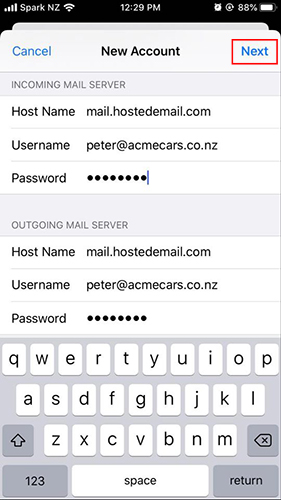
Step 9: The account will now verify, this may take a few minutes.
Step 10: Ensure Mail is switched On > Tap Save
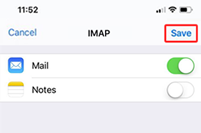
Step 11: Your email account should now be successfully added.
Your email account will now be set up in the iPhone Mail app.
Leave a comment
Please sign in to leave a comment.